
Adding Entries Manually
Add entries yourself from your event dashboard when you already know who or what is competing.
Fields
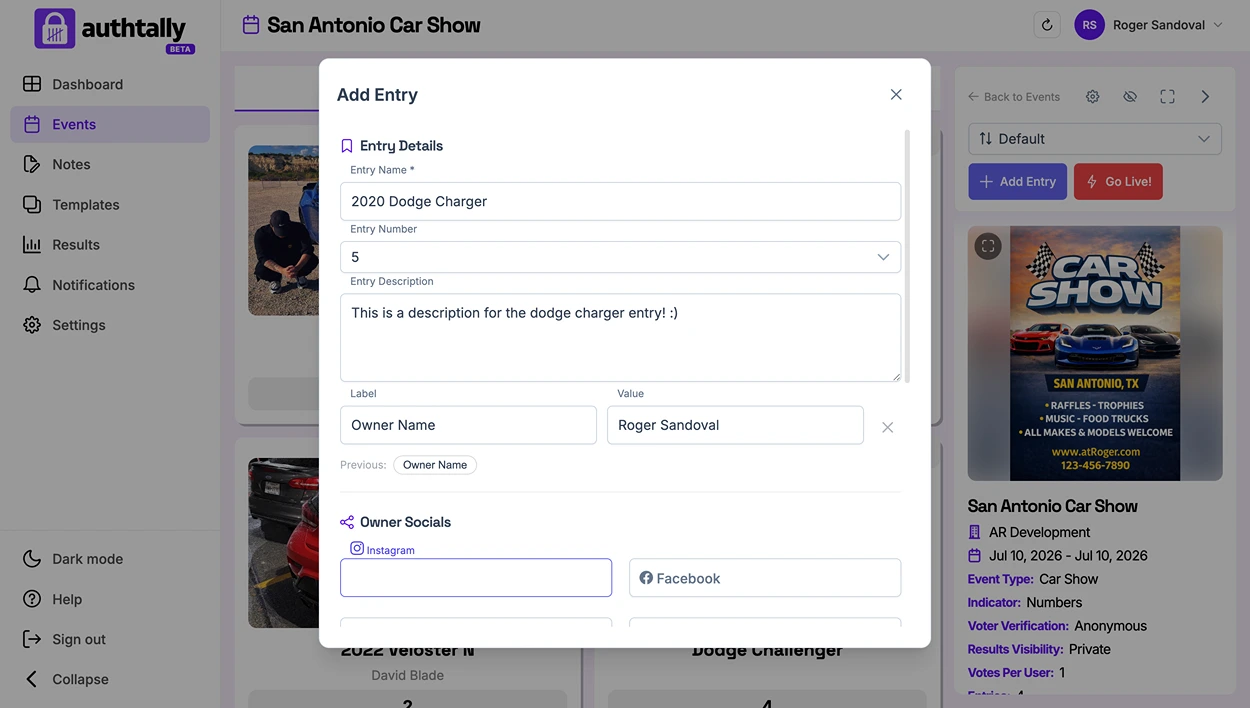
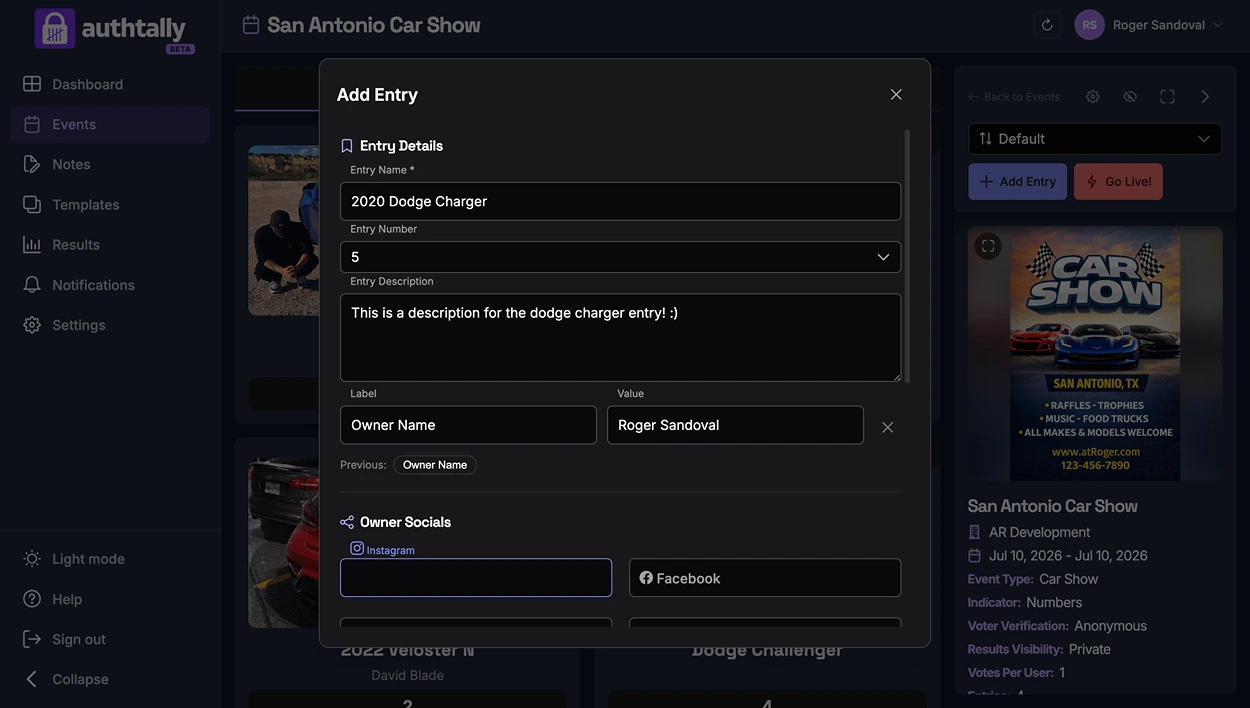
Each entry can include:
- Name
- Photo
- Description
- Indicator, a number, color, letter, or custom text used to identify the entry
- Search Keywords, extra words voters might search for that don't appear anywhere else on the entry
Nothing here is individually required, not even the name. You just need to fill in at least one field before you can save the entry.
Why use an indicator
Indicators are useful for in-person events where voters need to match an entry on the vote page to something physical in front of them, a table number, a bib number, or a colored ribbon, without relying on names alone.
Search Keywords
Search Keywords let you tag an entry with words attendees might search for that don't show up anywhere else on it, a nickname, a character or theme, an inside joke. Add them as removable chips; they're entirely optional and never displayed anywhere on the entry itself. Their only job is to widen what the public voting page's search box matches, alongside the entry's name, indicator, description, and custom field.
Other ways to add entries
If you'd rather let contestants or attendees submit their own entries for approval, see Public Entry Submission Form.