
Custom Page Theme Pro
Recolor the public vote page to match your event's branding, or just make it your own.
What it is
By default, the vote page uses AuthTally's standard colors. With a custom page theme, you can recolor everything from the accent and backgrounds down to the social icons and indicator banner, so the page your voters see can match your event's logo and branding, or just look however you want it to.
Where to find it
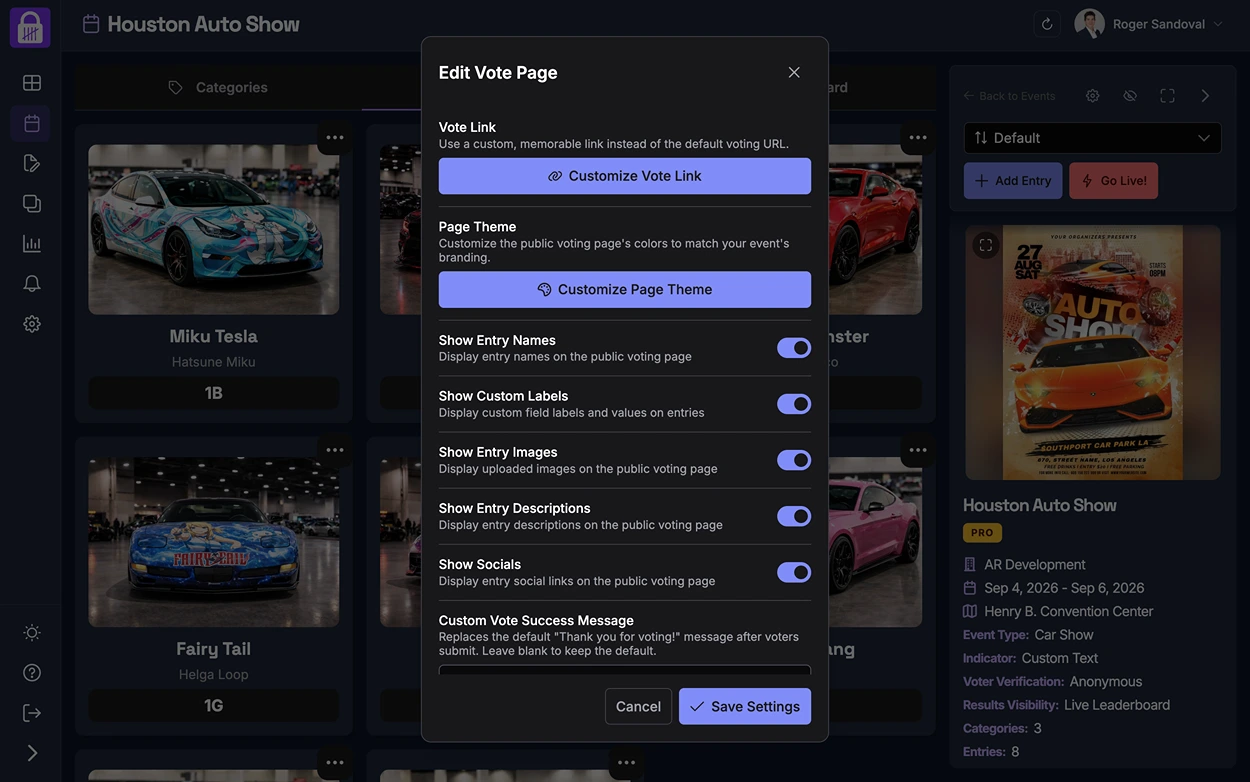
Open your event, go to Edit Vote Page, and look for the Page Theme section, right below the vote link settings.

What you can change
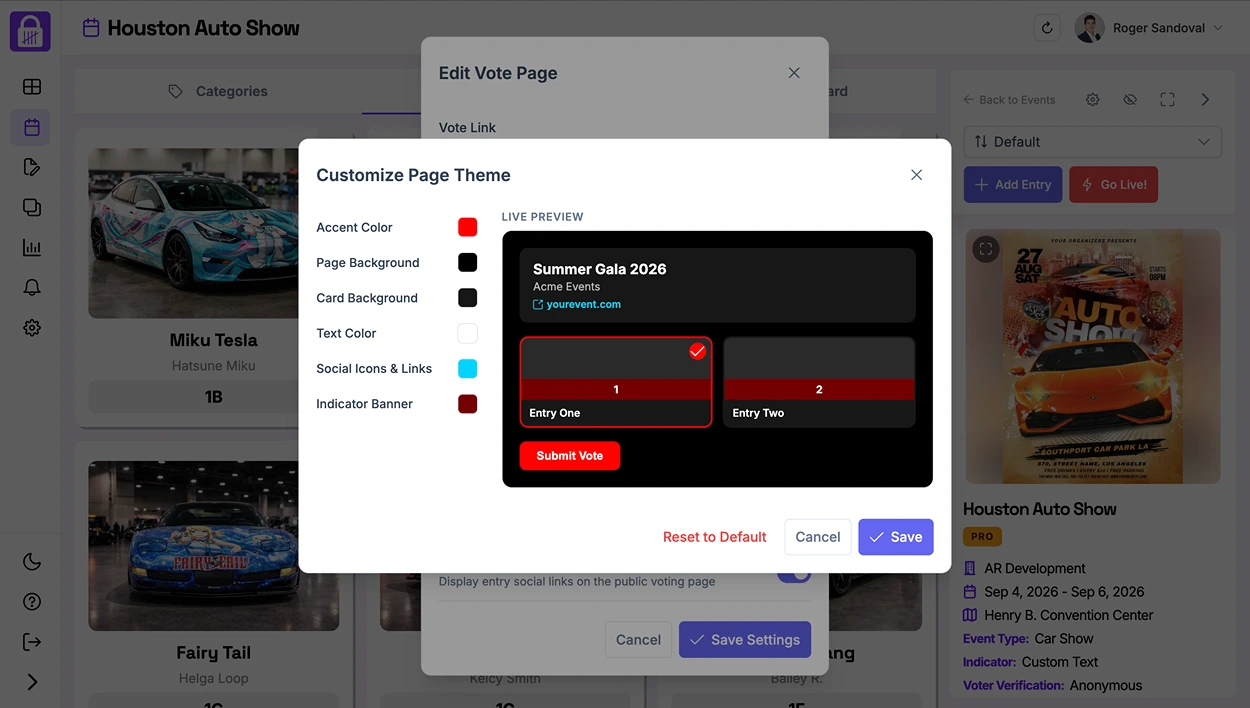
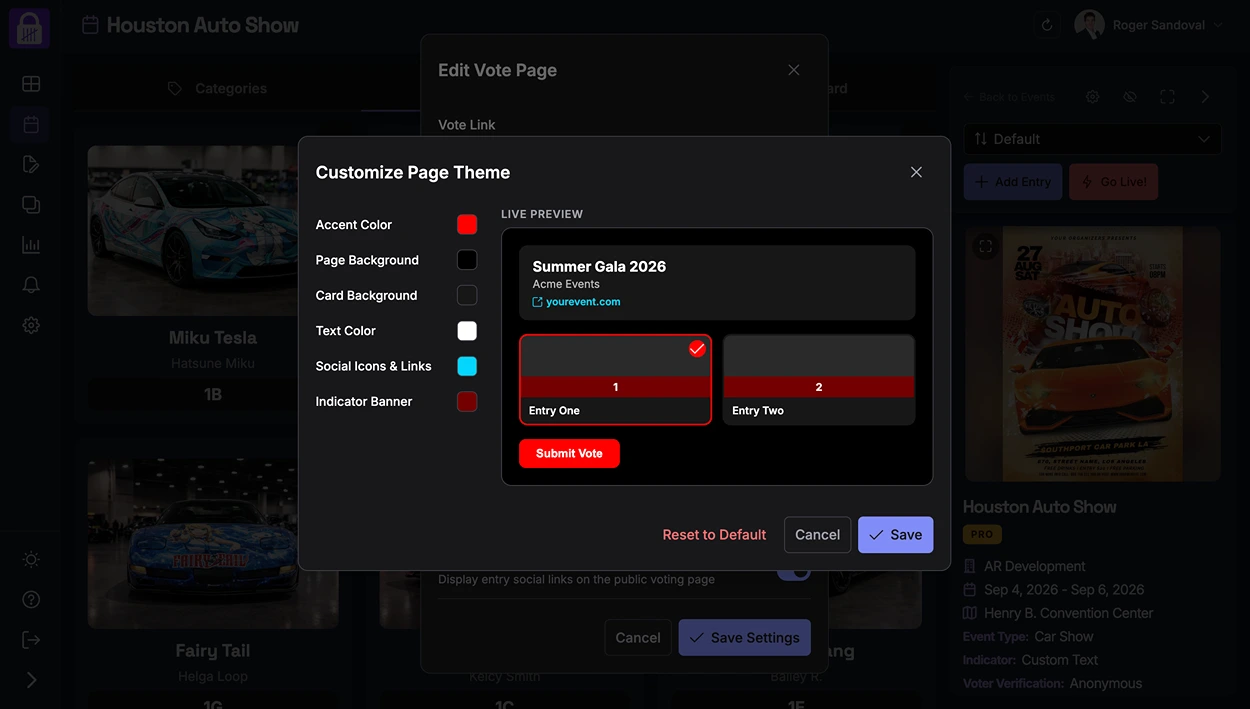
Clicking Customize Page Theme opens a color picker for six elements, with a live preview of the vote page updating as you go so you can see exactly how it'll look before saving.
- Accent color: buttons, selected entry borders, and highlights
- Page background: the base color behind everything
- Card background: the color of each entry card
- Text color: entry names and body text on the page
- Social icons & links: the color of any social links shown on entries
- Indicator banner: the color of each entry's number, letter, or custom text indicator
Not loving where you landed? Reset to Default puts every color back to AuthTally's standard theme in one click.
What voters see
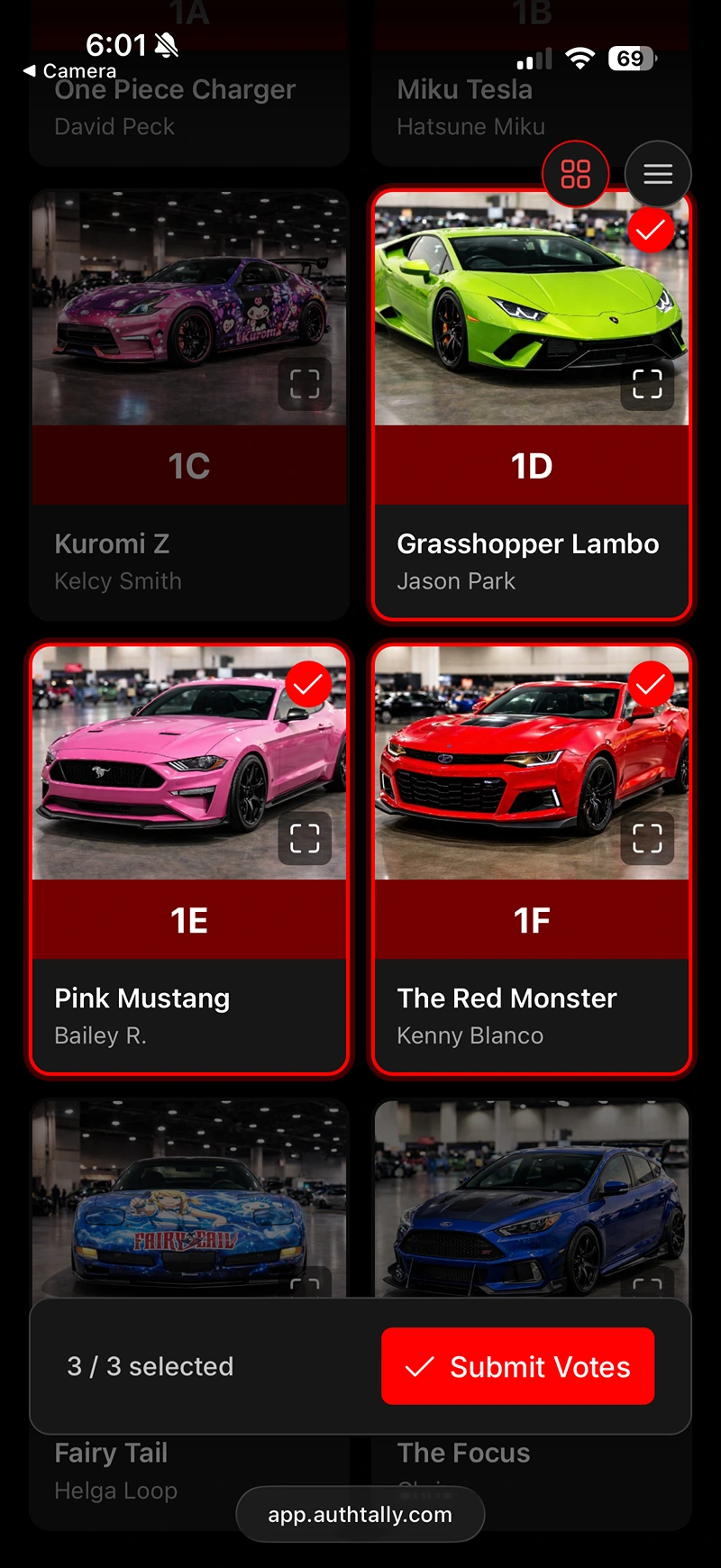
The theme carries over to the actual public vote page, not just the preview, here's a red-on-dark example in action.

Free and Plus events
Free and Plus events use AuthTally's default vote page colors. You can still control what information shows on the page, see Customizing the Vote Page.